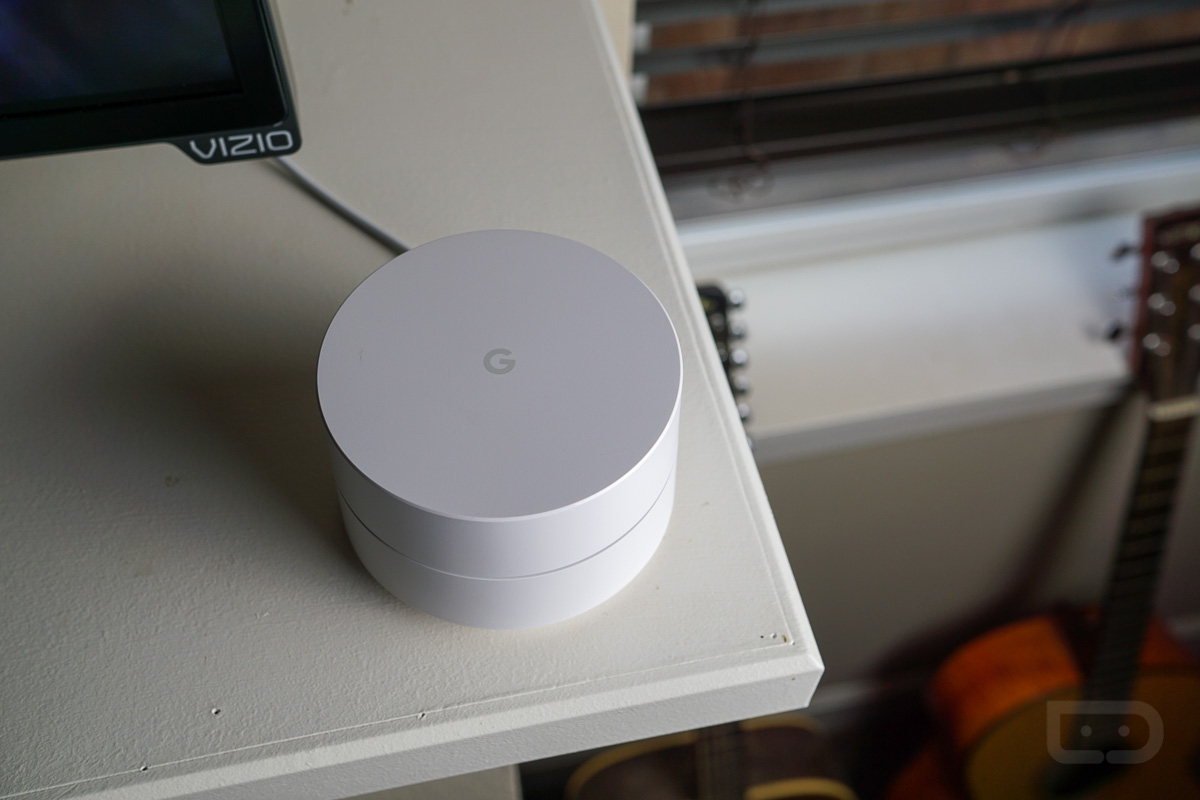
Thanks to an upcoming change that Google says will be rolling out over the next couple of weeks, owners of Google WiFi will be able to check speeds of individual devices connected to their mesh network. As of right now, you can only do a network check on devices that can access the Google WiFi app, such as a phone. However, with this change, you’ll be able to see just how fast your Google Home or Wear OS device is running when on your network.
To access this change, you’ll head into the Network Check menu inside of the Google WiFi app. If you can’t find it, its under the shortcuts section of the Settings tab. From here, you’ll be able to test the connection of any device connected to the network.
With the feature, users should be able to determine better placement of not only their WiFi points, but the devices that are hooked up to them. As Google puts it, “Knowing WiFi coverage is poor in an area of your home can help you pinpoint the exact bottleneck when you notice a connectivity slowdown.”
I’m not seeing this option available in my app yet, but I’ll be on the lookout. If you see it in yours, let us know in the comments.

You can see what each individual device is pulling…what is the difference.
Still no DDNS support?!? Only thing keeping me from google WiFi right now
I wish Google would let you throttle an individual device that continually hogs more bandwidth, even though, I give priority to one device for a period of time. The XboxOne continually pulls more bandwidth than say the Fire TV stick, even if the Fire TV stick has bandwidth priority. The stick gets a great signal to the wireless AP and the Xbox is also wirelessly connecting to the same or different wireless APs. If I block the XboxOne, the Firestick’s bandwidth increases, as it should. Makes me think the Priority device is not actually getting priority bandwidth. I don’t wish to always block the Xbox, but being able to throttle it from time to time would be great!
You’re leaving out a key piece of info….when running the XBox in your current config, is the quality of service affected on the Fire TV? If not, QoS is doing its job.
Yes, it is a noticeable effect on the Fire TV stick. Temporarily blocking the Xbox will significantly improve the QoS of the FireTV stick.
I have the Test device under the Network check in the app. Can’t wait to try it when I get home.
I don’t think that’s the same thing. Test Device has been there since the start and let’s you use your phone to check the wifi signal to the phone only. So, unless they are keeping it as “Test Device” and when you click on it, it opens a lit of devices…
It’s been so long that I’ve messed around with the app I can’t even remember what is listed in there. Thanks