Google Chrome on your computer is getting 3 really great new features. And actually, you may have already been using them, thanks to a quiet rollout a couple of weeks ago that Google is now acknowledging.
The 3 new features you’ll soon start using are Split View, PDF annotations in the PDF Viewer, and a new “Save to Google Drive” shortcut.
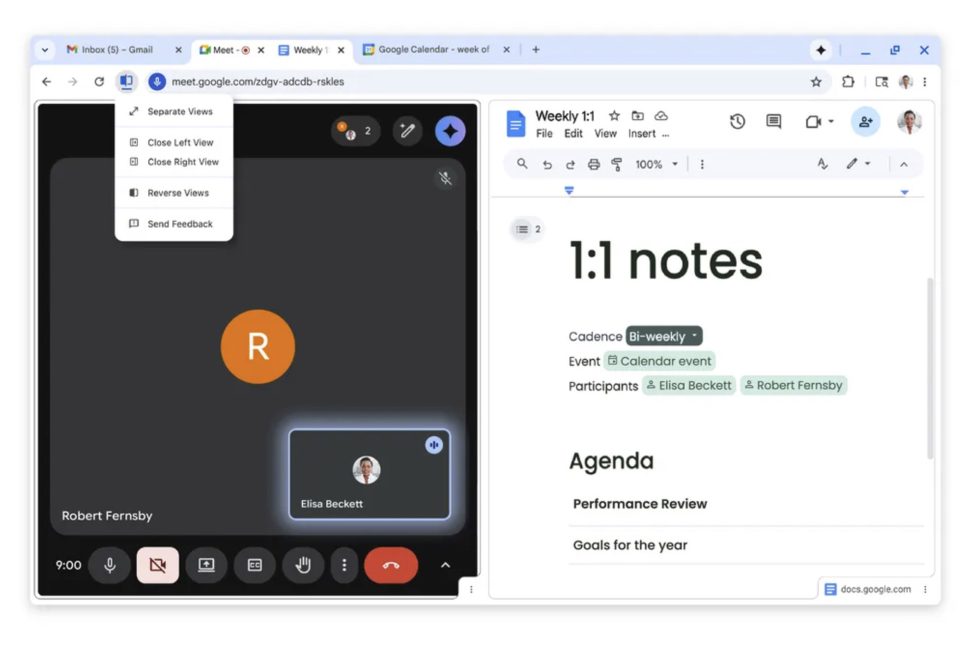
My favorite of the new features is probably Split View. I feel like this is really changed the way I use Chrome in recent weeks. I’m the type of person who has 30 tabs open across 3 windows at all times, but with this new Split View, it allows me to work within a single tab and see two items I might be working on. On my laptop, it has become even more useful.
To get started, you’ll right-click on a tab and then tell it to “Add Tab to New Split View.” Then, a blank split view tab will suggest other tabs you may want to include. From there, you’ll have two tabs split within a single tab. You can resize, reverse their order, and separate them back into their own tabs. In the blank tab within split view, you can also just search through Google for info or tap a bookmark.
You can see exactly how this new Split View looks in the image above.
The other 2 new features are pretty straight-forward to understand:
- PDF annotations: The built-in PDF Viewer for Chrome now lets you highlight text and add notes, so you can quickly add signatures, mark-up a document, and note important items before saving or sending off to another person.
- Save to Google Drive: Now when you are viewing a PDF in a Chrome tab, rather than save it to a downloads folder that you may never find again, there is a new “Save to Google Drive” button (next to the Download button) that lets you quickly save to one of your Google Drive accounts. Google will put this file in a “Saved from Chrome” folder that should be super easy to find.
These new features have been out for some time, so you can start using them right away.
I hope they put split view in a different place in the context menu than Brave. You used to be able to disable it in Brave, but they took that option from us recently. For some reason I have accidentally clocked the stupid option a few times since it was added. I hate it.
@Kellen no one uses Chrome. We all moved to Firefox since Chrome took away ad blocking.
How is split view a benefit over just having two windows side by side?
If they want to impress me they'll add an ad block extension capability. Otherwise I will continue to use MS Edge!
Amazing