Category: Apps

The latest selection of Android apps, both free and paid, are found right here. If you were looking for that fresh list of trending Android apps, we have you covered on a daily basis. Want to know the newest Android application releases first? Want to know which Android applications are free for a limited time?

Whether it’s Gmail, Google Calendar, Twitter, YouTube, and Instagram, or lesser known apps like Nova Launcher, Trello, Sling TV, and Philips Hue, you will know the best Android apps at all times.

Got a suggestion for a new app you think we should check out? We are all ears and regularly accept user-submitted applications, so that you won’t pay until you know if we approve.

  • There’s Now an Official List of Games You Can Play on Google Home With Your Family (Updated)

    There’s Now an Official List of Games You Can Play on Google Home With Your Family (Updated)

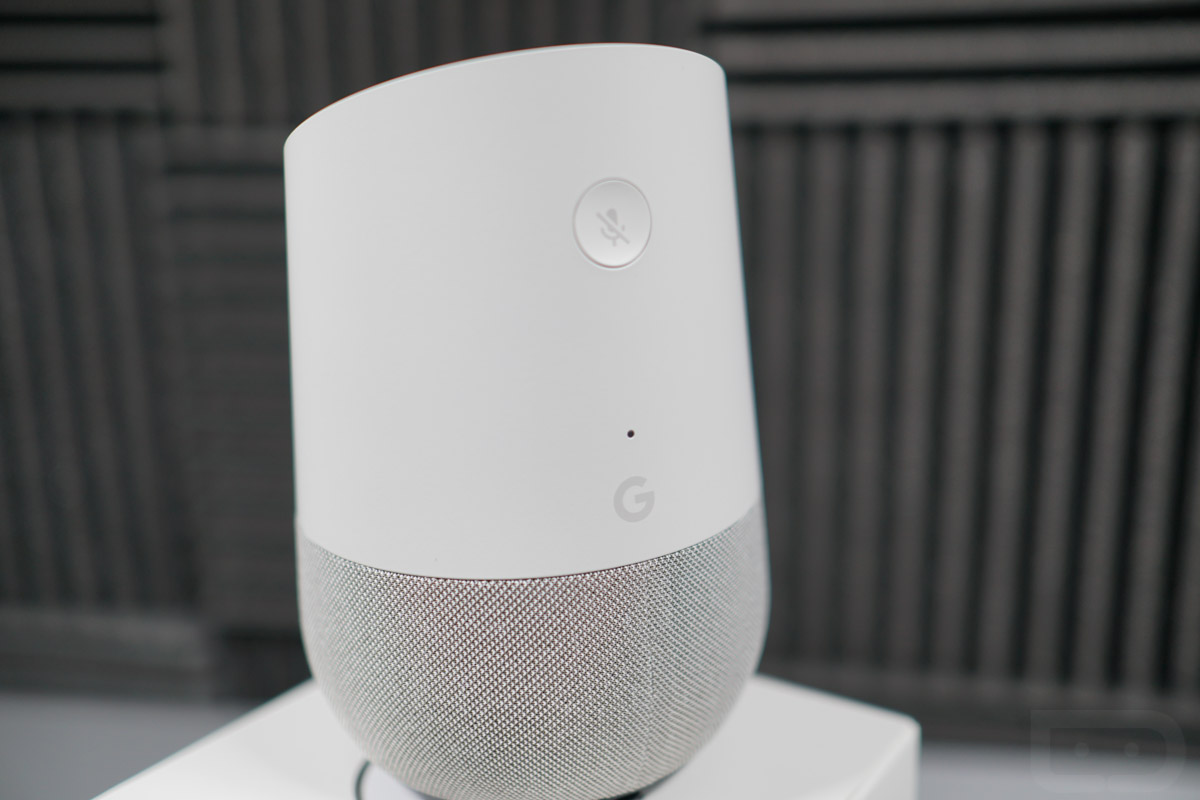
    No doubt there are plenty of fun titles you can enjoy with your family on the Google Home, but finding a definitive list has been sort of tough. Thanks to a post on Google’s support website, we now have such a thing.

    According to the web page, there are over 35 different apps and games specifically for the Google Home, including a Harry Potter quiz, Math Showdown, Tech Trivia, Space Trivia, and more. Seriously, it’s a solid list of games, perfect for keeping you or that special little someone in your life occupied for a bit.

    To see the full list, follow the link below and if you see something you like, each link contains the specific command you need to begin the game/app on Google Home. For example, “Ok Google, Play Harry Potter Quiz.”

    Update: Google made this all official with a press release, detailing more about what kids can do with a Google Home.

    The new activities are rolling out today so you can go on a family adventure together. With their parent’s permission, children under 13 can also have their own personalized Google Assistant experience when they log in with their own account, powered by Family Link. Family Link helps parents manage their child’s Google Account while they explore. And with Voice Match, your family can train the Assistant to recognize who’s speaking, up to six voices.

    Have fun!

    // Google [2]
  • Button Mapper Lets You Change Pixel 2’s Active Edge Action

    Button Mapper Lets You Change Pixel 2’s Active Edge Action

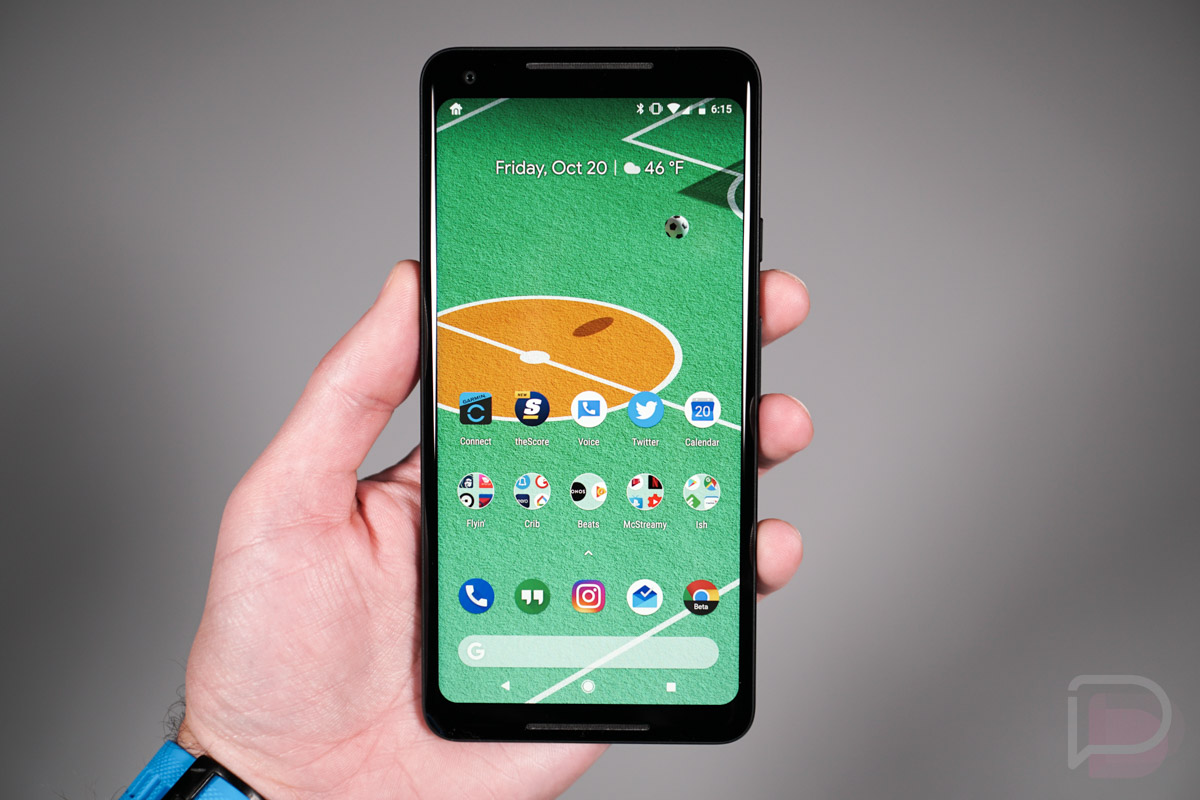
    Not cool with the Pixel 2’s Active Edge being locked to Google Assistant and not open to any action you might get more use out of? Button Mapper has been updated with a work-around that will let you change it, though it’s not as simple as just installing an app and tapping on a couple of things. Instead, you have some work to do, including a bit in adb (????).

    Because Google has apparently hardcoded Google Assistant to Active Edge in the Pixel 2’s SystemUI, they made it incredibly difficult to easily change what it can do. In other words, a straight re-map of the function might not ever happen without some heavy lifting, so today’s update to Button Mapper is more of a weird masking or tricking of the system into doing what you want.

    According to XDA, Button Mapper is “using an Accessibility Service to detect when Google Assistant is about to pop up, then it reads the system logs while filtering for something called ‘ElmyraService.’” Once it detects that, my assumption is that it kills Assistant from launching and then tells the system to launch whatever action you have defined. The current setup also kicks you back to the home screen when activated, which is obviously not ideal. Obviously, this is a first attempt and currently the only option if you really don’t want to launch Google Assistant with Active Edge.

    To get started, you’ll have to install Button Mapper from the link below. Then, head over through the XDA link to get the full set of instructions. Have fun!

    Google Play Link

    // XDA

  • Google Play Music for Android TV Getting Big Redesign

    Google Play Music for Android TV Getting Big Redesign

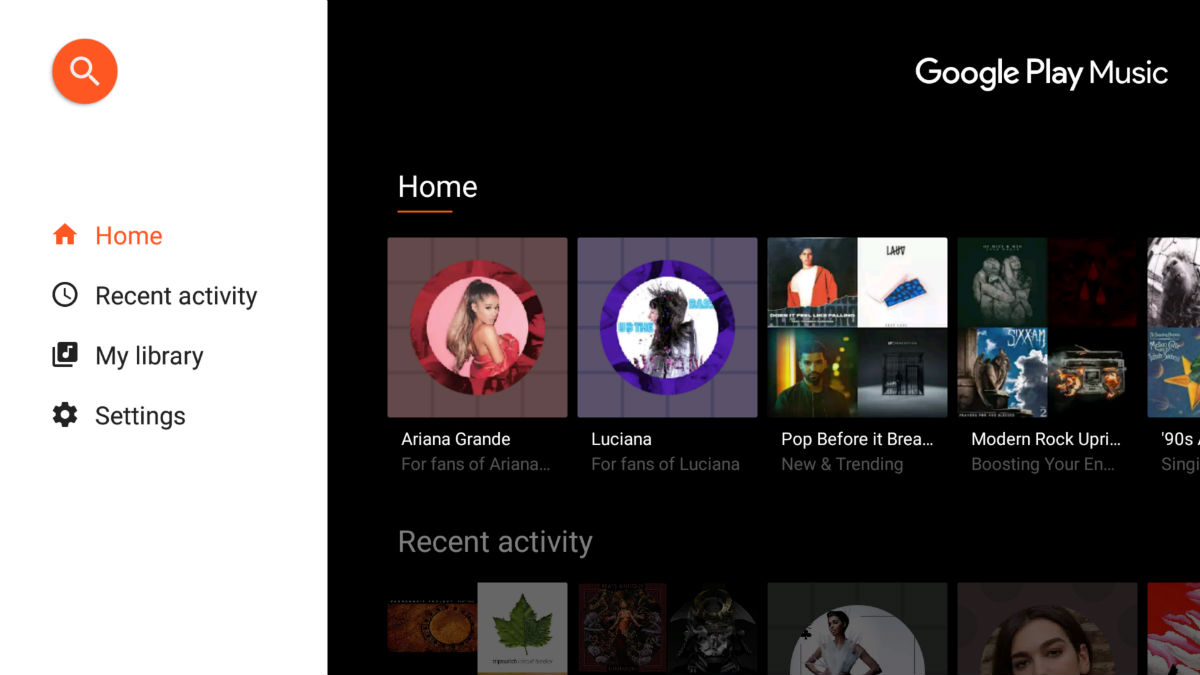
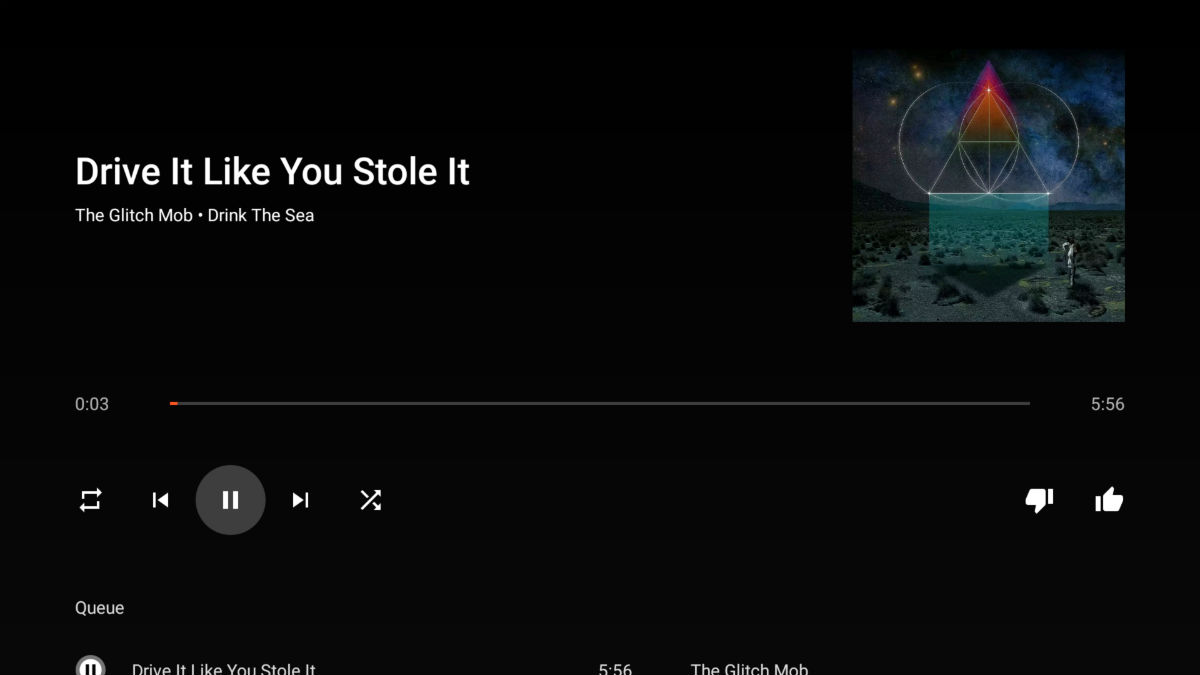
    Here’s some exciting news for Google Play Music fans, specifically those who use the service on Android TV. Spotted by the folks at Android Police, Google’s music service is getting a big redesign, one that should be making its way to your set-top box or smart TV soon.

    As you can see from the above header image and screenshot below, a lot of the UI has been blackened, allowing some album covers to really pop with color. Additionally, Google has removed a few of the notable Material Design characteristics, but we feel that this UI looks much more clean than ever before.

    In terms of new features, there don’t appear to be any (not noteworthy, at least), with this update being purely aesthetic. Either way, it looks slick.

    The update should be rolling out to all users via Google Play right now or within the next few days.

    Enjoy.

    Play Link

    // Android Police

  • Monument Valley 2 Hits Google Play on November 6

    Monument Valley 2 Hits Google Play on November 6

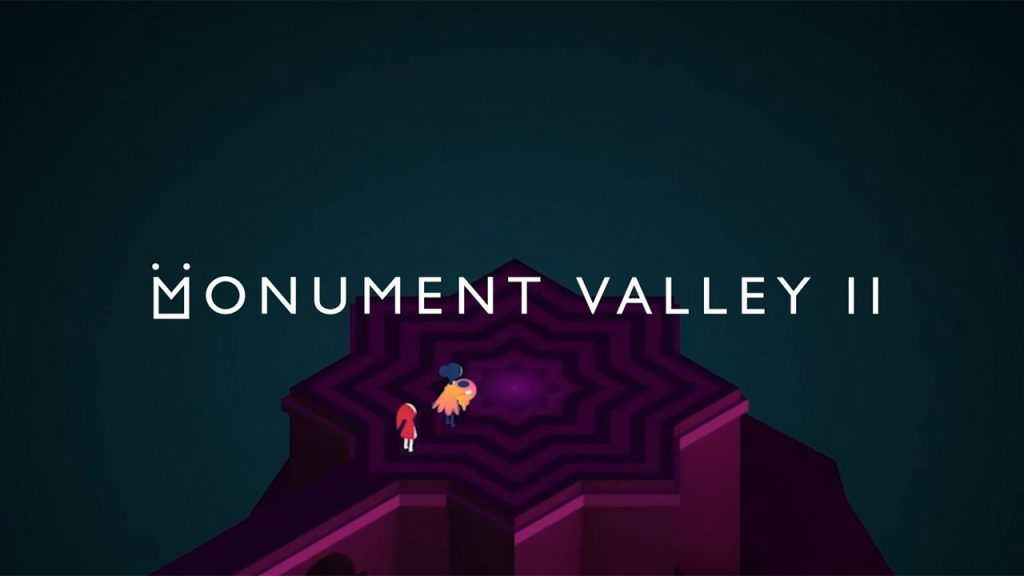
    Back in June of this year, Monument Valley 2 launched with iOS exclusivity. Today, the developers gave Android users a reason to be excited for November 6. According to a tweet sent out by ustwo games, the game will finally be made available for Android that day, about 5 months after it was first available for iOS.

    If you haven’t already known, the game has been up for pre-registration on Google Play for some time. Pre-registration, in this case, means no more than just a notification for when the game goes live. It’s helpful, but not all that exciting.

    Check out the embedded trailer below for the game, then get pumped for the launch.

    Play Link

  • Google Calendar, Sexified With Material Design, Now Available to All Desktop Users

    Google Calendar, Sexified With Material Design, Now Available to All Desktop Users

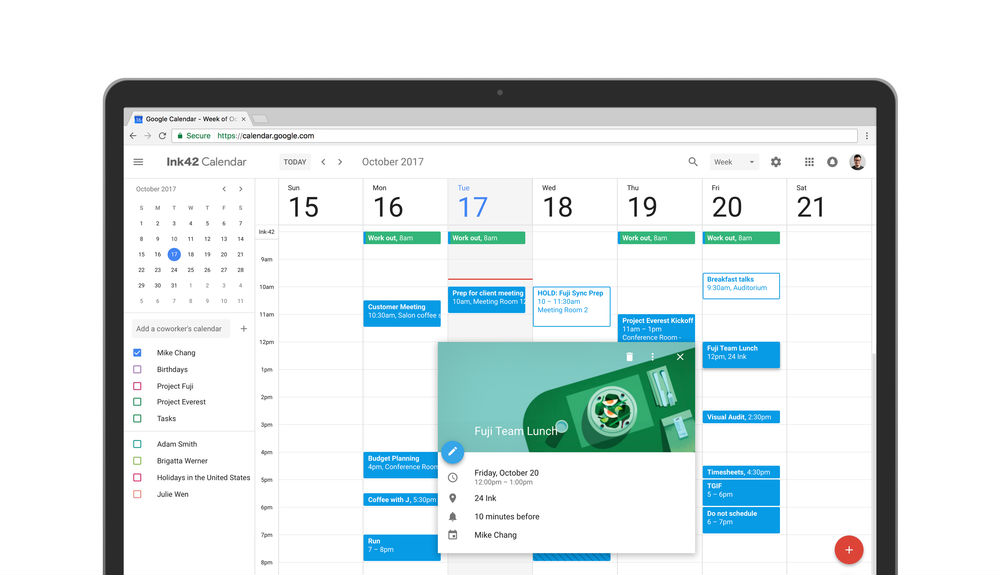
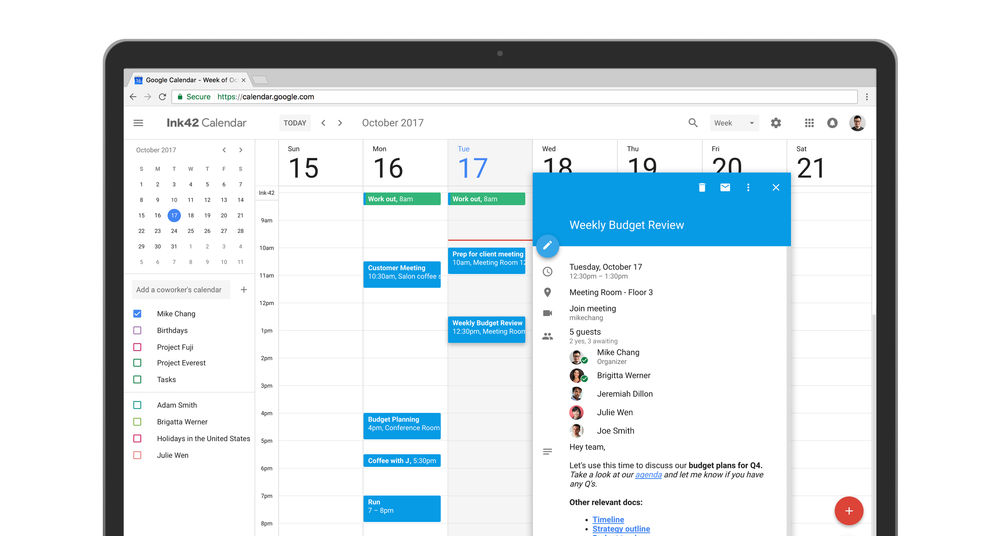
    Back in mid-August, a big redesign for the web-based Google Calendar was teased by a beta user on reddit. Today, that redesign is official and available for everyone, and man, it looks good.

    Basically, the whole thing has been redesigned from top to bottom, complete with a floating action button, ability to check on other’s calendars (should you be an enterprise user), as well as the fact you can add rich formatting and hyperlinks to calendar invites.

    As Google details, “Now you can see contact information of meeting participants when you hover over their names in a Calendar invite. There’s also a new way to view and restore deleted items in one place in case you accidentally delete a meeting.”

    To get started, open up Google Calendar for the web, then hit the “Use new Calendar” button in the top right.

    Such fancy.

    // Google

  • New Nova Launcher 5.5 Beta Adds Searchbar to Dock Option, Fun Icon Animations, More

    New Nova Launcher 5.5 Beta Adds Searchbar to Dock Option, Fun Icon Animations, More

    A new Nova Launcher v5.5 beta update is available now to beta participants and it includes some of the goodness from the Pixel Launcher in the Pixel 2, as well as other Oreo-styled items.

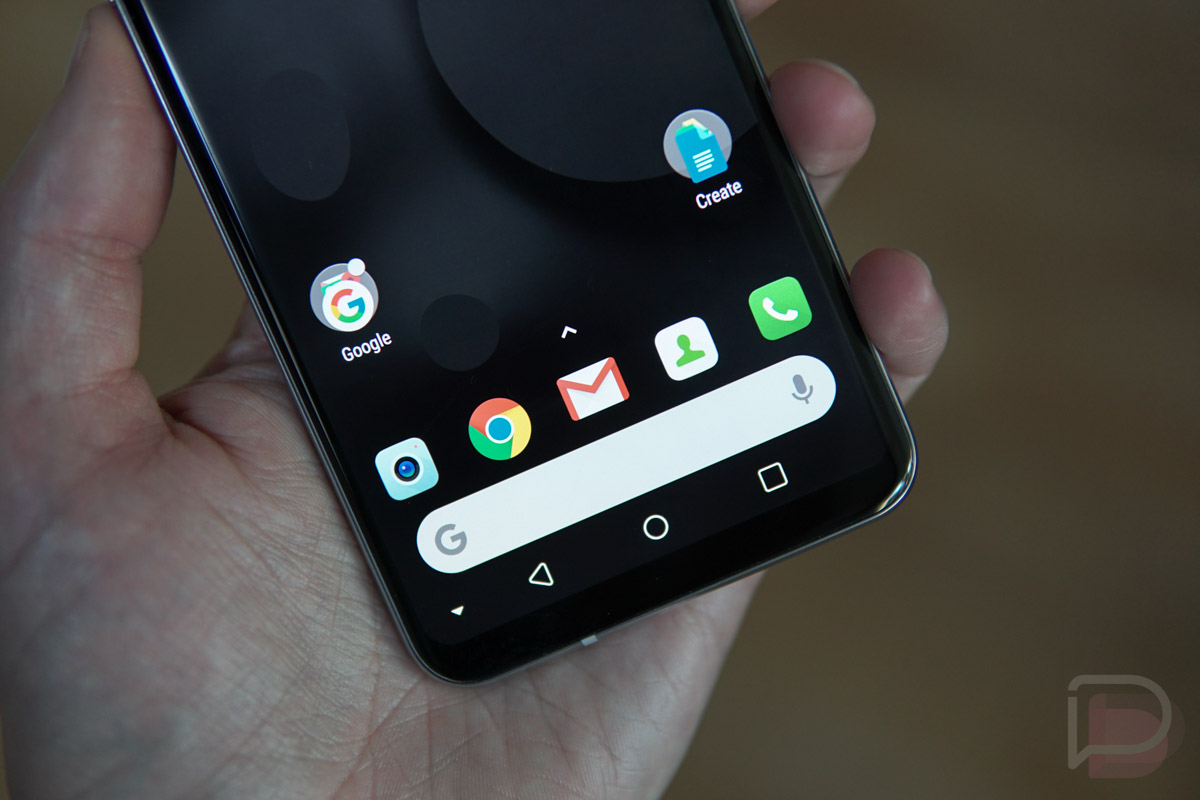
    For one, you can now add the search bar directly to the dock if you want, just like you’ll see on the Pixel Launcher with the Pixel 2. You’ll find it in Nova Settings>Dock>Searchbar in dock. To style it, you’ll do so from Nova Settings>Desktop>Search bar style.

    If you aren’t a fan of the searchbar moving, well, maybe you’ll like the new pop-up menu found in Oreo. The pop-up menu being the menu you see as you long-press on icons or folders on your home screen. To find this setting, head into Nova Settings>Look and Feel>Popup Menu.

    Finally, you’ll find fun little adaptive icon animations as you drag icons around (assuming you have adaptive icons turned on), speed improvements to adaptive icon shape and theme application, and bug fixes and other optimizations.

    If you are in the beta, head into Google Play and you should see the update live already. If you aren’t, you can find beta builds and ways to join at the source link below.

    Google Play Link

    // Nova Launcher Beta

  • Your Pet Photos Will Now Show Up Alongside Your Friends and Family in Google Photos

    Your Pet Photos Will Now Show Up Alongside Your Friends and Family in Google Photos

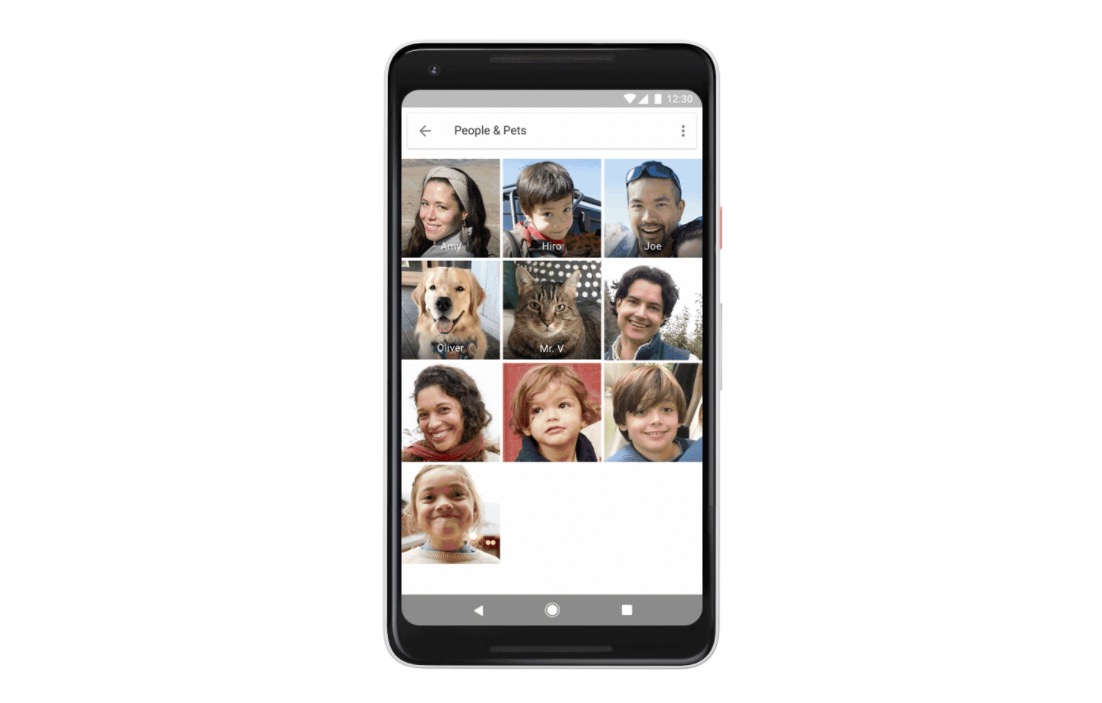
    Because we all take massive amounts of pictures of our pets thanks to all of our pets being awesome, Google is making it easier to locate them all in Google Photos. Starting today and rolling out globally, Google will start showing your cats and dogs in groups alongside all of the people you currently see.

    Instead of just a “People” category, you’ll find a “People & Pets” category that includes your furry friends too. You’ll be able to name them and quickly make albums or movies out of the pictures of them. Additionally, Google says that you’ll also be able to search by breed, so you could search for a Poodle or Maine Coon and find results, plus they are letting you do animal emoji searches with cat and dog emoji.

    Google didn’t specify if you’ll need a Photos app update or if this is a server-side change. My guess is the latter.

    Google Photos is awesome.

    Google Play Link

    // Google

  • Google WiFi Adds Site Blocking to Keep Away Inappropriate Websites From Your Kids

    Google WiFi Adds Site Blocking to Keep Away Inappropriate Websites From Your Kids

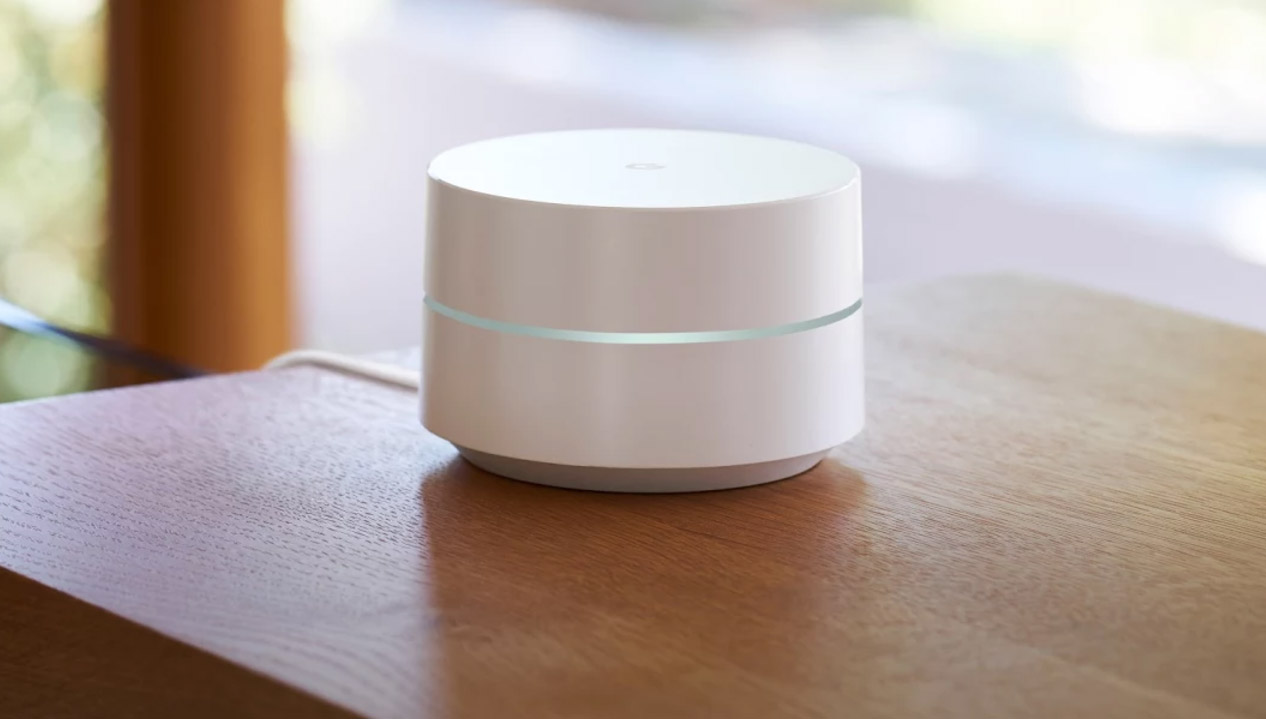
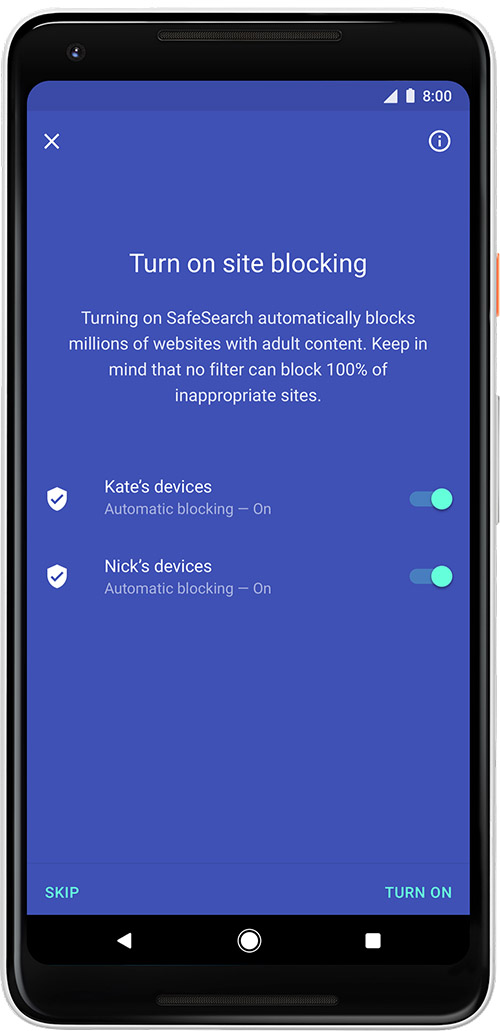
    Google WiFi, a heck of deal in the mesh WiFi router game, received an update today that gives admins the ability to turn on site blocking. That’s a techie way of saying that Google is giving parents a way to block unwanted content from their kids’ devices.

    With site blocking turned on, Google says that more than 8 million non-kid-friendly websites won’t show through on devices you specify. The option uses Google’s SafeSearch, which is always on the hunt for new sites to add to its list of bad guys. In fact, with site blocking turned on, Google will automatically start blocking new sites as they are added without any work from you.

    google wifi site blocking

    To turn on site blocking, open the Google WiFi app and head into the far right tab, the one with the 4 dots. From there, you should see a Family Wi-Fi option under the Settings section – tap it. Finally, tap on Site Blocking to enable the new feature. If you haven’t yet setup labels in your Google WiFi network to identify devices or  groups, you’ll have to do that first. For more on all of these settings, head over to Google WiFi support.

    Google Play Link

    // Google